Posts

Align in Illustrator
Image
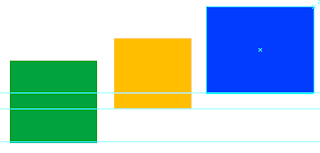
If you want several objects on a page to align you can select all the objects go to the pull down menu Window Align and a palette will appear with various different ways of aligning; Horizontal left, right, centered, etc. and choose the one you need. When choosing Horizontal Align Right the objects will align with the most right object; the most left, for align left, the top one for top etc. But say you want to have the objects shown below to Vertically Align Bottom, however not with the bottom one (green) which is what would happen if you clicked on the Vertical Align Bottom button in the Align palette, but with the yellow one. Select all the objects, click once on the object you want to align with, in this example the yellow rectangle and then click the Vertical Align Bottom button in the Align palette. The objects are now aligned bottom with the yellow rectangle. This also works for the other align buttons in the palette. If you change your mind and want to align with th...

For a bit of inspiration

Here's a link I received via via with movie leaders. The one's I have seen I find inspiring and brilliant, of course haven't had the time to see that many, but here's for you to enjoy. http://www.artofthetitle.com

Guides in InDesign

Image
I presume you know that guides can be dragged out of the rulers on the left and top of your document but here are some handy shortcuts and tips. Key commands for guides Command ; hides shows the guides Alt Control ; locks and unlocks guides Shift Command ; makes them magnetic (snap to guide) Command L locks only the selected guides Double click on the ruler on the left and a horizontal guide will be placed, the top ruler will place a vertical guide Next to or on the page If you drag a guide out of a ruler and release on the page the guide will go across the page, release the mouse button next to the page and the guide crosses the entire pasteboard, which is handy when using spreads. Dragging an existing guide or one out of the ruler while holding down the command key and it will always cross the pasteboard. Whole numbers Dragging a guide while holding down the shift key and the guide will always be placed on a “whole” number when using millimetres and on increments of 1/8 inch when...

Arial or Helvetica and games friday

All designers know Helvetica and when to use it, then came the knock-off computer font Arial along with the pc- do it yourself "designer" and Arial appears on every word document and flyer. Can you see the difference? Test yourself at: http://iliveonyourvisits.com/helvetica/ Want to know more about Helvetica and Arial then go to: http://www.ms-studio.com/articles.html And then of course you can read about the Helvetica film: http://www.helveticafilm.com/ Then try the ultimate typeface game, (but not on the bosses time) http://fontgame.ilovetypography.com/ Now get back to work ; D

illustrator swatches

Here are some handy key command shortcuts in Illustrator. Changing the colour mode of swatches Want to change the colour mode of your swatch? Click twice on the swatch in the swatch palet to open up the swatch options or via the flyout menu swatch options. Press the shift key and click in the colour of the swatch palet (under the word colour mode) and with each click illustrator will show you the swatch values in different modes and change the swatch to the chosen mode. It also works for pantone colours although I would not use this method for print, best is to refer to the pantone swatch books. Want change the swatch to the complimentary color. Use the method above but this time hold down the command key To invert the swatch open the swatch options palet and click in the colour or the swatch while holding down the Command and Shift keys Changing the colour of objects If you want to invert the colour, change it to it's greyscale equivalent or the complmentary colour of an objec...

Photoshop history

Finally a post. It has been quiet from this side of the pond at least blog-wise on the home front it has been quite noisy. The kids have had two weeks vacation and then it was catch-up time. But hope you enjoy the following tip. Photoshop is a perfect program to experiment in. Sometimes applied effects give the perfect result, but we can't always recall exactly how we did that? You could of coarse write down the whole process, or better yet let Photoshop do it for you. Photoshop can keep track of every action made. You, however must activate this option yourself by going to Photoshop-Preferences-General and activate the option History log. Then choose either Metadata, Text file or both. With Text file the actions can be read in a (printable) TextEdit file. The Metadata information can be found by going to File- File info…- History. There you can see every action applied and it's completely digital. Edit Log Items choose detailed to get a detailed description of what you did. T...

The Nike Swoosh

Here's a fun website about logos and also shows how some changed over the years. I like the Apple and Nokia. And of coarse the real story behind the Nike swoosh. Did she really only get 25 bucks? Find out here. worlds best logos