Posts

Showing posts with the label type

InDesign tip: Connecting text paths and fun friday
Image
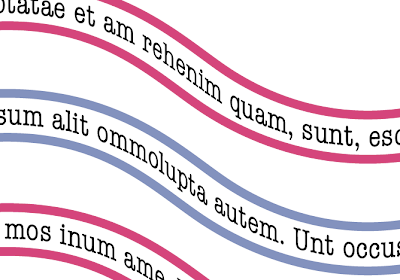
You might already know this, but you can place text on a path in InDesign. And just as you can thread text frames you can also thread text paths. Follow the following steps. 1. Draw a path with the pen or pencil tool. 2. Select the Type on a path Tool. This is behind the Type Tool in the Toolbox. 3. Find the beginning of the path. Wait till a plus sign appears next to the I bar (cursor) and click. The path has changed into a text path. 4. Duplicate the text path by selecting it with the selection tool (black arrow). Hold down the Alt key and drag. 5. Type Command-Shift-3 (mac) or Control-Shift-3 (win) to repeat this last action and make more text paths. 6. Select the first path with the selection tool. To the right and left of the path you will notice two squares. These are called text ports. Click on the right hand port. Go to the begining of the second path. Place the cursor over the square until you see a link symbol and click. The paths have now been joined. 7. Repeat step 6 for t...

Fun Friday

Image
Yeah it's Friday, day for fun stuff. Type My nine year old son wanted to make his own birthday invitations. A collage of fast cars, Sponge Bob, a cool DJ and Babes (his words not mine). The theme of the 'disco party' is Bling Bling. While helping him make his e-invite, we couldn't find a 'Bling Bling' type typeface in my font file. So I looked on the web and found this site. Bling Bling Just what his e-invite needed. I have not experimented with the different settings, but what I liked most is that you can save the file as JPEG, PNG with transparency, and as a PSD file with layers! Hey for a nine year old's invite it was fast and did the job. Fun site Here's a great site for a department store in Holland. (If I have to compare it's like a Walmart or Woolworths) Give a while to start. Hema And to watch during your lunch break ; -) Master of photography

InDesign Tip: Adjusting Text Frames

Image
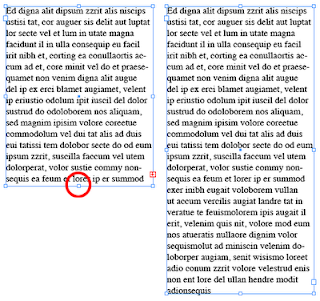
Here are a few tips on how to quickly adjust a Text Frame in InDesign. Many times the text frame is too small to fit all your text. InDesign warns you with the little red cross. You can drag the text frame to fit the text or you can simply double click the white anchor point at the bottom of the frame. InDesign will automatically adjust the frame to fit the text. One condition, the text does have to fit on the page. This also works if your text frame is too big.

Arial or Helvetica and games friday

All designers know Helvetica and when to use it, then came the knock-off computer font Arial along with the pc- do it yourself "designer" and Arial appears on every word document and flyer. Can you see the difference? Test yourself at: http://iliveonyourvisits.com/helvetica/ Want to know more about Helvetica and Arial then go to: http://www.ms-studio.com/articles.html And then of course you can read about the Helvetica film: http://www.helveticafilm.com/ Then try the ultimate typeface game, (but not on the bosses time) http://fontgame.ilovetypography.com/ Now get back to work ; D

Gravity in InDesign

I have often put type on a path in InDesign and then chosen a different "Type on a Path Option". (The default is Rainbow.) The other options look fine if that's the look I want, but when  I choose the gravity option either nothing happens or aaargh …  click that one away. The problem was I had no idea what it was doing to the type. Until the other day I came across this podcast at www. mogo-media.com and was blown away. Rufus Deuchler also shows you the correct use of the drop shadow. Not as an effect behind type  like 'I've seen on too many pizza take away folders and flyers. Here's the link  http://www.mogo-media.com/podcasts/indesign/gravity_effect/ Thank you so much Mr. Deuchler

Where's my type gone?

Have you ever experienced the following situation? Your InDesign file uses 2 columns, you want to change this into 3 columns, but when you do this, a portion of your type disappears and the red square with an x appears. No "insert break character has been used, no new paragraph, the columns are wide enough to fit the type. There just seems to be no reason why the type doesn't flow on. Here are some possible causes. 1. The No break option has been applied to a word or words. This option ensures that words are never hyphenated and stay together including the spaces before or after the word(s) if they too have been selected. 2. In the hyphenation settings menu "the before last" number has been set too high.