Posts

Showing posts with the label strokes

Dotted lines

Image
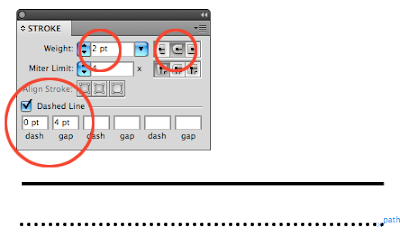
Dotted lines should be directly available in all the graphic applications. In the Creative Suite applications only InDesign has the dotted line option. In Photoshop and Illustrator you have to make them yourself. Dotted line in Illustrator I used this method in Illustrator 3.2 but it still works in CS4. Draw a line. Open the Stroke panel and make sure the options are available. Set the stroke weight to 2pt Set the cap end to rounded Check the option Dashed Line Set the dash value to 0pt and the gap value to 4pt. Setting the gap value to twice the stroke weight and the dash to 0, a dot will fit exactly in between. If you are happy with the result then make it a new graphic style. If you make it a brush it will retain the proportions between the gap and weight all other functions only the dots enlarge. Dotted lines in Photoshop photoshop doesn't have a standard dotted line stroke option. Select the Brush Tool Go to Windows> Brushes Select a brush size and set hardeness to100% Set ...

A few Illustrator shortcuts

Want to change a fill or stroke to none. 1. Indicate whether you want to change the fill or stroke in the tool menu You can toggle between the fill and stroke by pressing the x key 2. Select the object and press the / key. Applying the same fill and stroke You can apply the same fill and stroke to an object without it being selected. 1.Select the eyedropper tool 2. Click in the object that has the colour and stroke that you wish to apply to other object(s) 3. Hold down the option key and click in the (unselected) objects. If the object you want to change has no fill, then you will have to click on the path in order to change the appearance. (This is why I always advise using smart guides see tipbits tuesday april 8) Applying the colour of a stroke or fill with another colour used in your document. 1. Indicate whether you want to change the fill or stroke in the tool menu You can toggle between the fill and stroke by pressing the x key 2. Select the object you want to change 3. While h...