Posts

Showing posts with the label brush sites

Fisheye effect in Illustrator and Photoshop
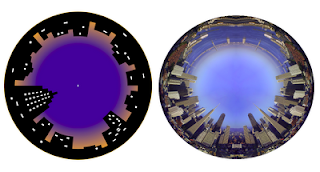
Image
You are probably familiar with this effect. A fisheye lens is a wide-angle lens that takes in an extremely wide, hemispherical image. You can attain the same effects in Illustrator and photoshop. Fisheye in Illustrator. 1. Start with a drawing of a skyline. 2. Open the Brushes palette3. Select your drawing and drag it into the Brushes palette. Choose New Art Brush. In the Dialogue box check the Flip Across option. Click OK to save your drawing as a brush. 4. Draw a circle. 5. Select the brush you just made and your drawing is placed as a stroke around your circle. In the dialogue box there are various other options to choose and experiment from. The image below uses the Flip Along option. The Size Width gives you more variations. Fisheye in Photoshop Make a panoramic montage in Photoshop, or use a panoramic photo. (File>Automate>Photomerge … 1. Place the panoramic photo on a separate layer. The longer the image the better the effect. In this example I have mirrored the skyline o...

Photshop Brushes 2

Image
I thought I had found the best site for brushes, which I posted earlier. Guess not. Scouring the web I have come across a few more. Here follow a few links PSBrushes Categorized and very practical. Brusheezy MyPhotoshopBrushes.com Also categorized with instructions on 'How to install' brushes.500ml.org These are actually more like Stamps then brushes. It's best to just click when using these 'brushes' instead of dragging. Saving the best for last. At the link below you can find brushes that are 2500 pixels wide! Ideal for water colors or other painterly effects. This site also has vector brushes for Illustrator. This is the link for Photoshop brushes Here are a few handy keyboard shortcuts when using brushes. Type B = selects Brush Tool Brush diameter [-key = smaller brush diameter ]-key = larger brush diameter Hardness Shift + [ = softens brushes Shift + ] = increases hardness Opacity Type 1 = 10% Type 2 = 20% etc. Type 0 = 100% Type a quick 65 = 65% Straight...